Classroom Name Picker – Random Student Picker
A classroom name picker is a random student picker for teachers: put your class list on the wheel, spin, and it calls on one student fairly. With Auto-remove on, every student gets a turn before anyone is picked twice.
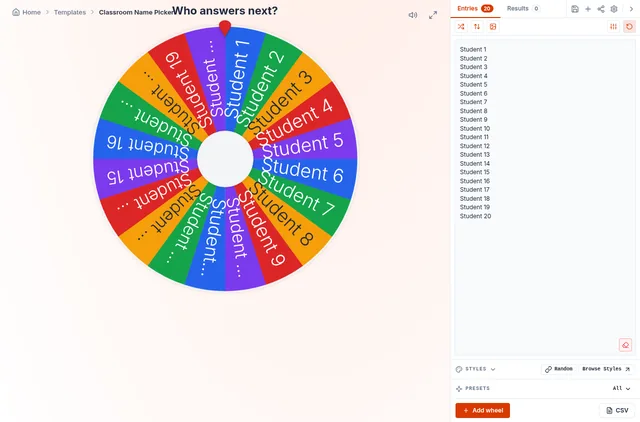
Replace "Student 1–20" with your class register (copy the name column from Excel or Google Sheets). Save one wheel per section, then open the right class from My Wheels at the start of each lesson.
Use it on the projector in fullscreen, on a tablet you carry around the room, or on your phone.
How to Set Up Your Class Spinner
Paste the class list
One name per line. Use first names or roll numbers if you prefer privacy.
Turn on Auto-remove
Customize → Auto-remove winner. Picked students leave the wheel until you press reset.
Save the class
Press the save icon and give the wheel a title such as "7-B Science". Repeat for each class.
Ways Teachers Use a Random Student Picker
Cold calling, fairly
Everyone stays alert because anyone can be next – and nobody is picked every time.
"Explain step 2 of the solution."
Groups and roles
Spin for group leaders, timekeepers and note-takers, or use the team generator to split the class.
Lab partners, debate sides, reading groups.
Rewards and jobs
Choose the line leader, board cleaner or the student who picks the class song.
Weekly class jobs.
Brain breaks
Add a second wheel with activities and "Spin all" to pick a student and a challenge.
Spell a word, name a capital, 10 jumping jacks.
Tips for a Fair, Kind Class Spinner
- Tell students how it works: everyone gets one turn per round.
- Allow a "phone a friend" pass so shy students are not put on the spot.
- Use blind mode for surprise rounds and the normal mode when you want students to see the list.
- Use first names only on shared links, and keep full class lists saved on your own device.
Frequently Asked Questions
How do I stop the same student being picked twice?
Can I save different classes?
Is my class list uploaded anywhere?
Can I pick groups instead of single students?
Related Wheels
More free tools in the same family.
From the blog